
Assigning courses for your team
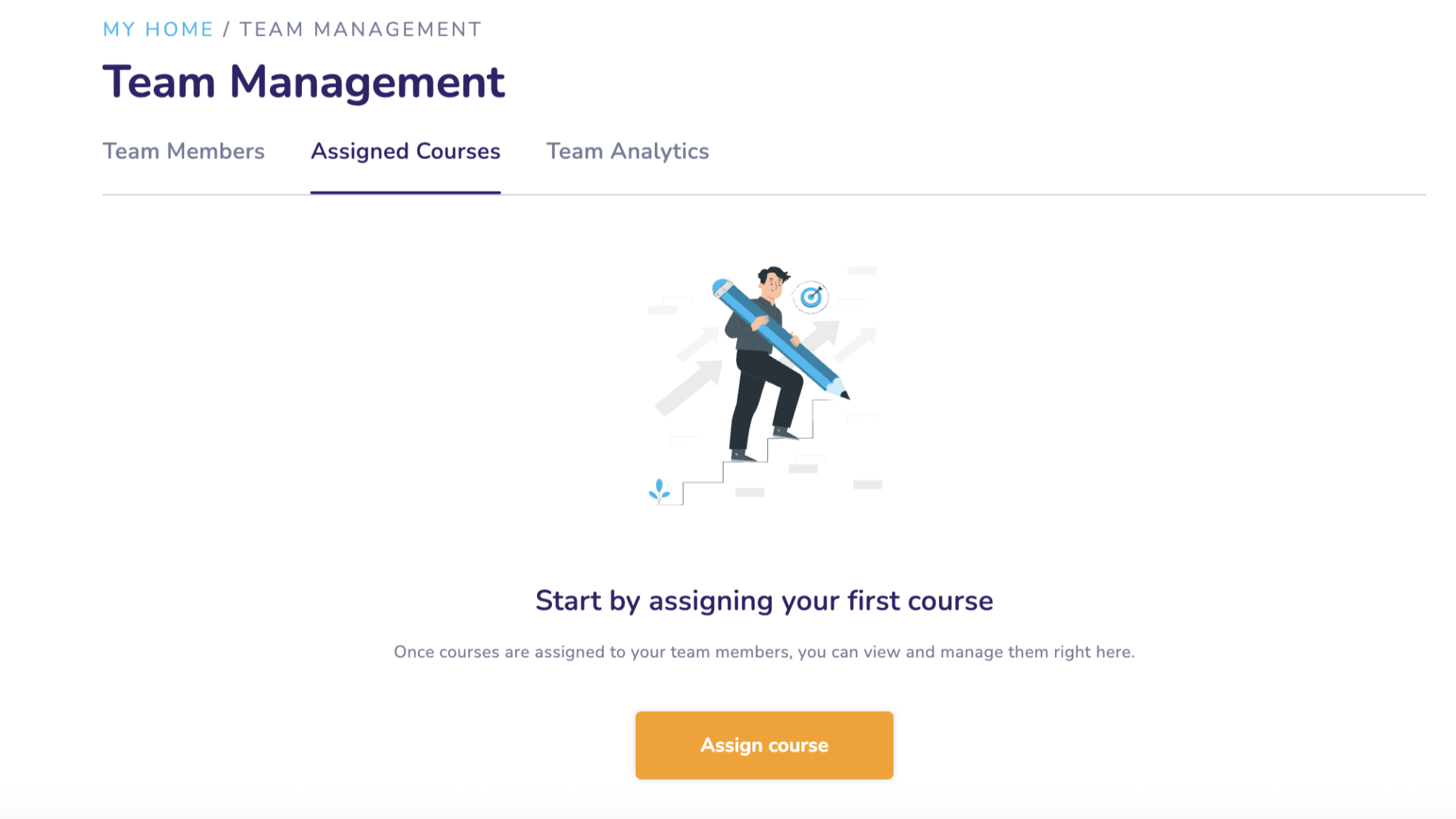
Assigned Courses gives you, as a License Holder or Manager, the ability to directly enroll individual members or groups into specific courses, quickly, clearly, and without needing support. This feature helps you structure your team’s learning journey, make expectations visible, and ensure every member knows exactly what they need to work on next.
Why assign courses?
- Create clarity by showing your team members exactly which course to complete, with clear due dates.
- Guide development by assigning relevant courses to the right people, perfect for onboarding, role-specific training, and upskilling.
- Save time by managing assignments independently through a self-service workflow.
- Increase follow-through with automatic email notifications when a course is assigned and again 15 days before the due date.
How to assign a course
Only License Holders and Managers can assign courses.
1. Go to “Assigned Courses”
You’ll find this in the left-hand menu on the learning platform.
2. Choose a course
Search for and select any course that's included in your team license.
Note: You can assign one course at a time.
3. Select the members
- Assign the course to everyone, or
- Manually select specific members or a user group
Members who already have this course assigned will appear greyed out and cannot be added.
4. Set an optional due date
Choose when you’d like the course to be completed.
- This due date is not a strict deadline; your team can still complete the course afterward as long as their membership is active.
- It serves as a motivational timeframe and appears clearly in the member’s course overview.
5. Finish & send
- Members receive an assignment notification immediately.
- They’ll also receive a reminder via email 15 days before the due date.
- The notification includes a direct link to the course overview page.
6. Managing assigned courses
- Afterward, you can also update the due date and list of assigned members.
- If you’ve assigned the wrong course or want to remove it entirely. You must delete the Assigned Course and start again.
How members see assigned courses
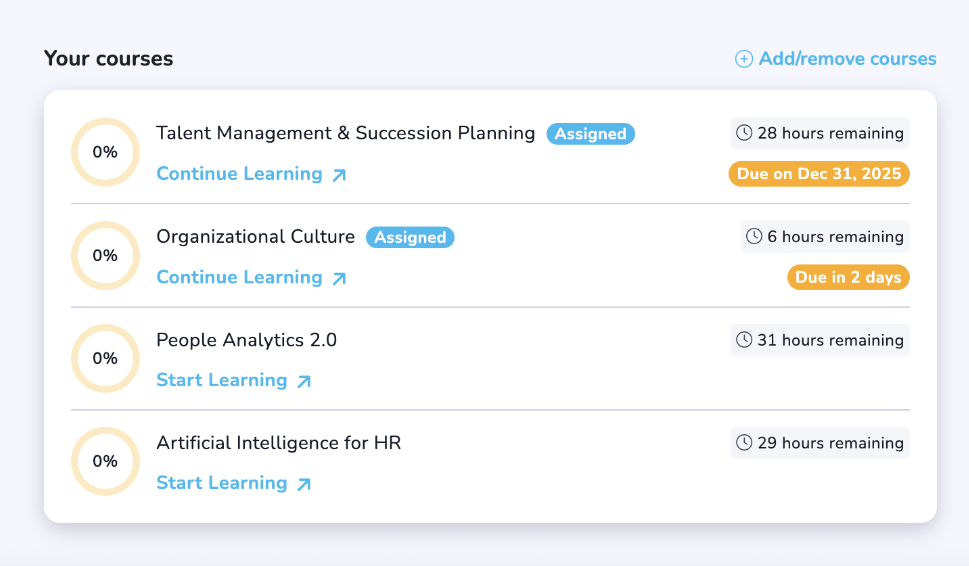
For members, an assigned course appears under “Your Courses” or "Your Mini Courses” on their My Home page in the course overview section, with the due date clearly displayed.
- Members cannot remove an assigned course.
- Completed assigned courses remain visible. If a member wants it removed, they must contact their License Holder.
- If a member is removed from the license, the course will no longer appear for them.
By assigning the right courses to the right people at the right time, you create a clear learning path, reducing confusion, improving engagement, and empowering your team to develop exactly where they need it most.
With full control, transparent deadlines, and built-in reminders, you can make learning more intentional and effective for your entire organization.